How to Track QR Code Scans — Complete Analytics Guide
Learn how to track and analyze QR code scans. Understand scan metrics, geographic data, device analytics, and how to optimize your QR code campaigns.
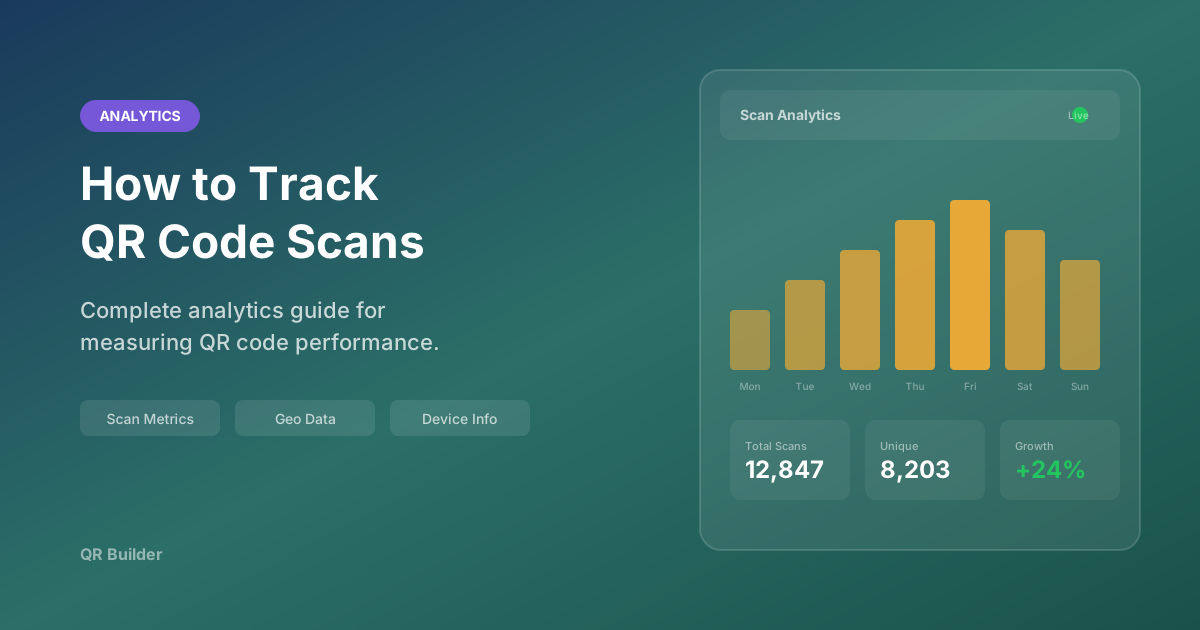
Tracking QR code scans provides valuable insights into how your audience interacts with your codes. Whether you are running a marketing campaign, managing a restaurant menu, or distributing business cards, understanding scan data helps you measure success and optimize your strategy. This comprehensive guide covers every method of tracking QR code scans, the metrics that matter, and how to use data to improve your results.
Why Tracking QR Code Scans Matters
Without tracking, a QR code is a black box. You know you printed 5,000 flyers with a QR code, but you have no idea if anyone actually scanned them. Was the campaign a success? Which locations drove the most engagement? Did mobile or desktop users respond more? Without analytics, these questions are unanswerable.
Tracking transforms a simple link into a measurable marketing channel. With the right data, you can:
- Measure campaign effectiveness: Know exactly how many people engaged with your QR code, not just how many flyers were distributed
- Identify optimal placement: Compare scan rates between different locations, materials, and contexts to find what works best
- Understand your audience: Learn what devices they use, where they are located, and when they are most active
- Calculate ROI: Connect scan data to conversion data to determine the actual return on your QR code investment
- Optimize over time: Use historical data to improve future campaigns, from design choices to placement decisions
Methods for Tracking QR Code Scans
There are several approaches to tracking QR code scans, ranging from simple URL-based methods to full-featured analytics platforms. Here is a comprehensive overview of each approach.
Method 1: UTM Parameters with Google Analytics
The simplest and most widely used tracking method. UTM (Urchin Tracking Module) parameters are tags you add to the end of a URL that Google Analytics reads and categorizes.
How it works:
- Take your destination URL
- Add UTM parameters to identify the source
- Encode this tagged URL into your QR code
- When users scan and visit the URL, Google Analytics captures the UTM data
Example URL with UTM parameters:
https://yoursite.com/promo?utm_source=qr_code&utm_medium=print&utm_campaign=summer_sale&utm_content=table_tentThe five UTM parameters:
- utm_source: Identifies the traffic source (e.g., "qr_code")
- utm_medium: Identifies the marketing medium (e.g., "print", "poster", "business_card")
- utm_campaign: Identifies the specific campaign (e.g., "summer_sale_2026")
- utm_content: Differentiates between variations (e.g., "table_tent_v1" vs "wall_poster_v1")
- utm_term: Optional, typically used for paid search keywords
Advantages:
- Completely free using Google Analytics
- Rich analytics including user behavior after scanning
- Integrates with your existing analytics setup
- No third-party QR code service required
- Works with any static QR code generator
Limitations:
- The full URL with UTM tags can be long, creating a more complex QR pattern
- Requires Google Analytics to be installed on the destination site
- Does not track scans that do not result in a page load (e.g., user scans but does not open the link)
- Cannot be edited after the QR code is printed
Method 2: URL Shorteners with Analytics
URL shortening services like Bitly, Rebrandly, or TinyURL offer built-in click tracking. By encoding a shortened URL into your QR code, you get basic analytics without needing Google Analytics on the destination site.
How it works:
- Create a shortened URL for your destination
- Encode the short URL into your QR code
- The shortening service logs every click (scan) and provides analytics
Advantages:
- Shorter URL creates a simpler QR code pattern (easier to scan)
- Built-in analytics dashboard with scan counts, locations, and devices
- Many services offer free tiers
- Can change the destination URL without reprinting the QR code
Limitations:
- Dependency on the shortening service remaining operational
- Free tiers may have limited analytics
- Adds redirect latency to the user experience
- Users may be wary of shortened URLs they cannot verify
Method 3: Dynamic QR Code Platforms
Dedicated dynamic QR code platforms provide the most comprehensive tracking by routing all scans through their servers.
Common metrics provided:
- Total scans and unique scans
- Scan timeline (hourly, daily, weekly trends)
- Geographic heatmaps
- Device type, OS, and browser
- Referral sources
- Custom event tracking
- A/B testing between destinations
Advantages:
- The most detailed analytics available
- Destination can be changed at any time
- Can deactivate codes remotely
- Some platforms offer retargeting pixel integration
Limitations:
- Most platforms charge a subscription fee
- You depend on the platform remaining operational
- Privacy considerations for scan data collection
Method 4: Server-Side Redirect Tracking
For developers, the most flexible approach is building a custom redirect endpoint on your own server. Each QR code points to a URL like yoursite.com/qr/abc123, which your server logs and then redirects to the actual destination.
Advantages:
- Complete control over data collection and storage
- No third-party dependencies
- Can integrate with any analytics or CRM system
- Maximum privacy control
Limitations:
- Requires development resources to build and maintain
- Need to manage server uptime and reliability
- Must handle data storage, privacy compliance, and retention policies
Key Metrics to Track and Analyze
Total Scans vs. Unique Scans
Total scans count every time the QR code is scanned, including repeat scans by the same person. Unique scans filter by IP address or device fingerprint to count individual users. The ratio between the two reveals engagement depth — a high total-to-unique ratio means people are scanning your code multiple times, which may indicate regular usage (good for menus) or confusion (bad for one-time campaigns).
Scan Timeline
When scans occur over time reveals critical patterns:
- Time of day: A restaurant menu code scanned mostly at noon and 6pm confirms lunchtime and dinner usage
- Day of week: A retail code scanned mostly on weekends suggests in-store browsing behavior
- Date trends: A spike after distributing flyers measures the campaign's immediate impact; a sustained baseline measures long-term placement effectiveness
- Seasonal patterns: Codes at tourist locations may show strong seasonal variation
Geographic Data
Where scans originate helps you understand your audience's physical distribution:
- Country-level data: Useful for international campaigns
- City-level data: Essential for local business campaigns
- Regional comparison: If you placed QR codes in multiple store locations, compare scan rates to identify your most engaged markets
Device and OS Information
Understanding what devices your audience uses informs your digital strategy:
- iOS vs. Android split: Affects which app features to prioritize
- Mobile vs. tablet: Affects layout and content design
- Browser type: Affects web compatibility requirements
Conversion Tracking
The ultimate metric is not how many people scanned your code, but how many took the desired action afterward. Connect your QR code tracking to your conversion tracking (purchases, sign-ups, reservations) to measure true campaign ROI.
Setting Up Effective Tracking
Step 1: Define Your Goals
Before creating any QR codes, define what success looks like for each one:
- For a restaurant menu: "X% of diners use the QR menu" (measure scans vs. covers)
- For a marketing flyer: "Y scans with Z% conversion to landing page sign-up"
- For a business card: "Number of new contacts who scanned and visited my portfolio"
Step 2: Choose Your Tracking Method
Select the method that fits your technical resources and needs:
- No development resources: UTM parameters + Google Analytics, or a URL shortener
- Some development resources: Dynamic QR code platform
- Full development team: Custom server-side redirect
Step 3: Use Unique Codes per Placement
The most common tracking mistake is using the same QR code everywhere. If the same code appears on your flyer, your poster, your table tent, and your business card, you cannot tell which placement drove the scans.
Create a unique QR code (or at minimum, unique UTM parameters) for each placement location. This allows you to compare performance across channels and identify which placements are most effective.
Step 4: Establish a Review Cadence
Data is only useful if you look at it. Set a regular schedule for reviewing your QR code analytics:
- Daily: For time-sensitive campaigns (product launches, events)
- Weekly: For ongoing placements (restaurant menus, store signage)
- Monthly: For long-term installations (building directories, permanent signs)
Step 5: Act on the Data
Analytics without action is just data collection. Use your findings to make concrete improvements:
- Low scan rates in a location? Move the code to a more visible spot, increase its size, or add a clearer call-to-action
- High scans but low conversions? The landing page may need optimization for mobile
- Certain times of day have more scans? Schedule marketing pushes around those peak times
Tips for Better QR Code Analytics
- Use unique QR codes for each placement to compare performance across locations and materials
- Set clear goals before launching — define what success looks like in measurable terms
- Review data regularly — weekly checks help catch trends early and allow timely optimization
- A/B test designs — create two versions of a QR code with different colors, sizes, or placements and compare scan rates
- Combine QR tracking with UTM parameters — even when using dynamic QR codes, UTM parameters provide additional granularity in Google Analytics
- Track the full funnel — do not stop at scan counts; follow users through to conversion to measure true effectiveness
- Benchmark against industry averages — QR code scan rates vary widely by industry, with retail averaging 5-10% scan rates on in-store signage and direct mail averaging 2-5%
- Consider seasonality — outdoor QR codes may show different scan patterns in summer vs. winter due to foot traffic changes
- Document your setup — keep a record of which QR codes are deployed where, what tracking method each uses, and what the target metrics are
Privacy and Compliance
When tracking QR code scans, be mindful of privacy regulations:
- GDPR (EU): If you track IP addresses or device information, this may constitute personal data processing. Ensure your privacy policy covers QR code scan tracking.
- CCPA (California): Similar requirements for California residents' data.
- IP Hashing: Consider hashing IP addresses rather than storing them in plain text. This allows you to count unique scans without storing personally identifiable information.
- Data Retention: Set a retention period for scan data and auto-delete after it expires. QR Builder purges analytics data after 90 days.
- Transparency: If your QR codes lead to a tracked page, mention this in your privacy policy. Users have a right to know how their interaction data is used.
Ready to Create Your QR Code?
Start generating free, customizable QR codes in seconds. No sign-up required.
Create QR Code Free